Download on your device today to schedule your swimming lessons easily from your phone.
See the App in Action
A quick walkthrough to help you view schedules, report absences, book make-ups, and stay connected.
Emler Parent Portal APP
How to download the app:
How to select a make-up class:
Using the ICP App
Need a little help navigating the iClassPro Mobile App? See below for instructions on how to get started, schedule a class, mark a swimmer absent, or schedule a make-up class.
Download the App
Open the App Store (iPhone) or Google Play (Android)
Search for iClassPro
Tap Install
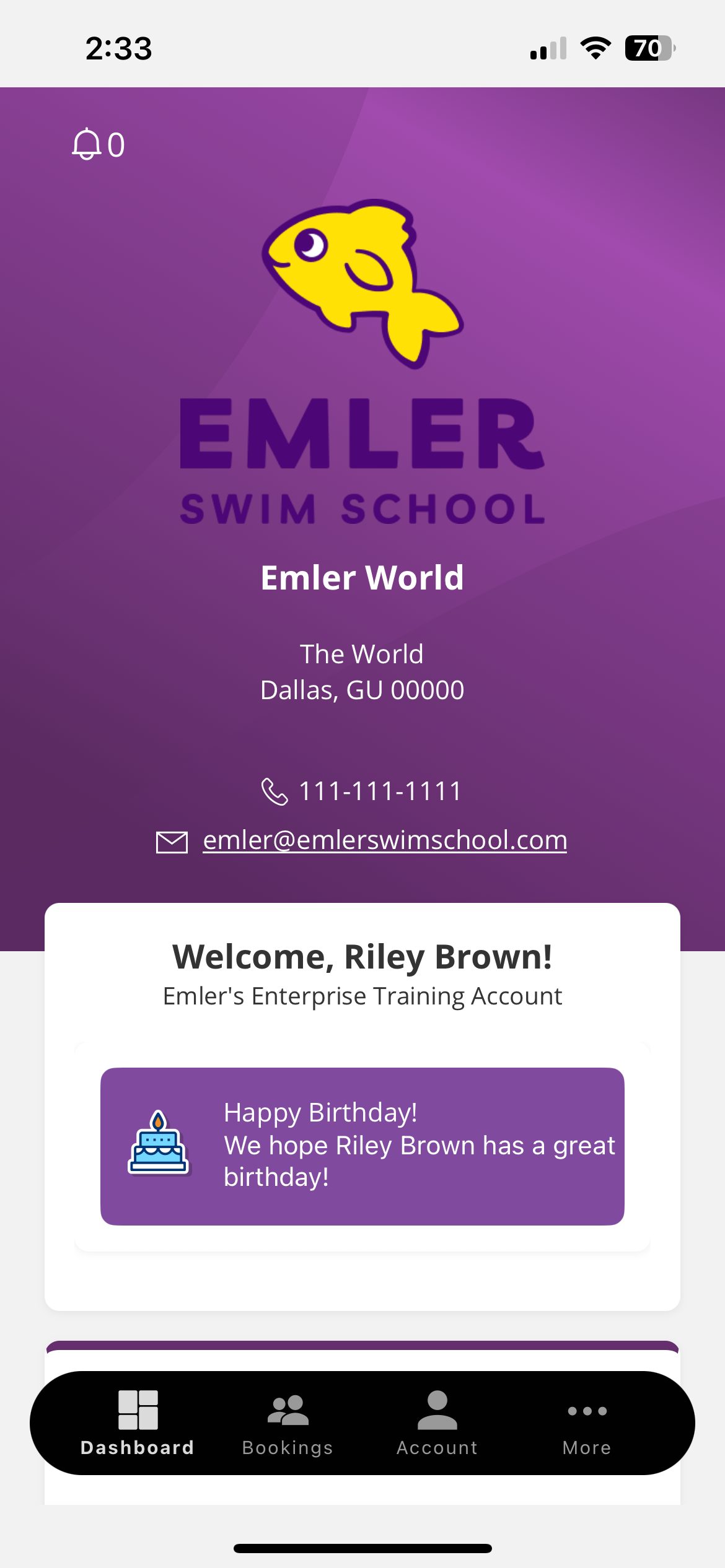
Open the app and tap Select Organization
Enter your school’s code from the list below
Log in using the email associated with your Emler Swim School account
New user? Tap Forgot Password to set one up
Organization Codes:
Emleraustin
Emlercolorado
DFW:
Walnut Hill/Preston Forest: Emlerdallas
Allen, Firewheel, Frisco, Plano, West Frisco: Emlerdfw1
Flower Mound, Ft. Worth, Southlake: Emlerdfw2
Emlergigharbor
Emlergreatlakes
Emlerhouston
Emlerindiana
Emlernevada
Emlernorthwest
Emlerolympia
Emlersanantonio
Emlersoutheast
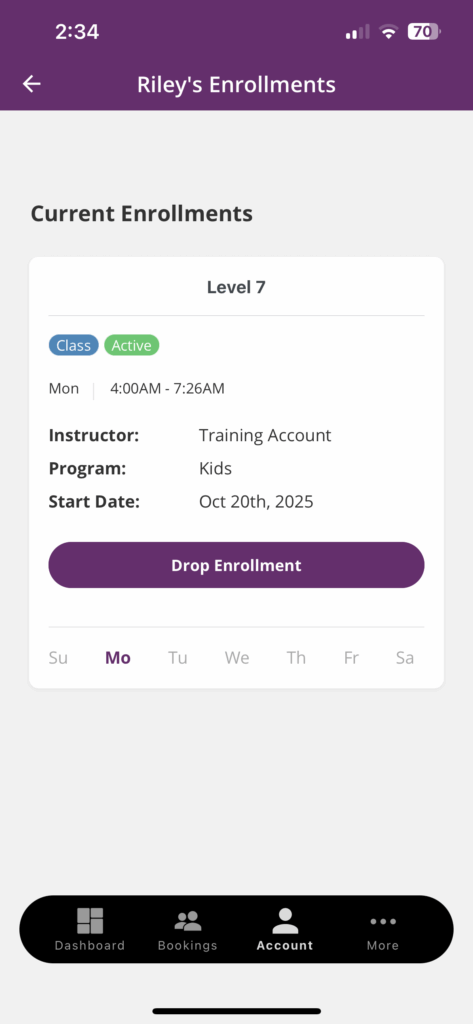
See Your Account and Classes
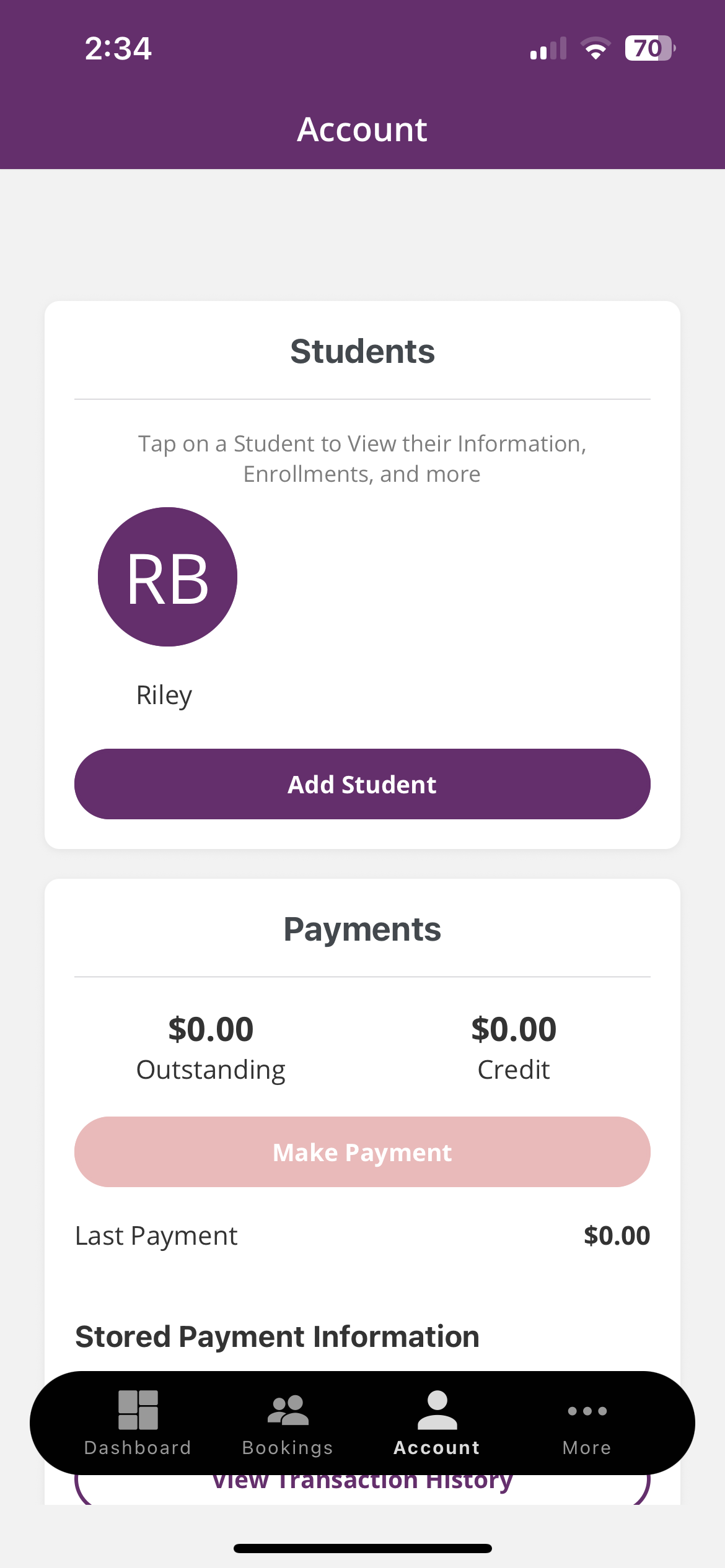
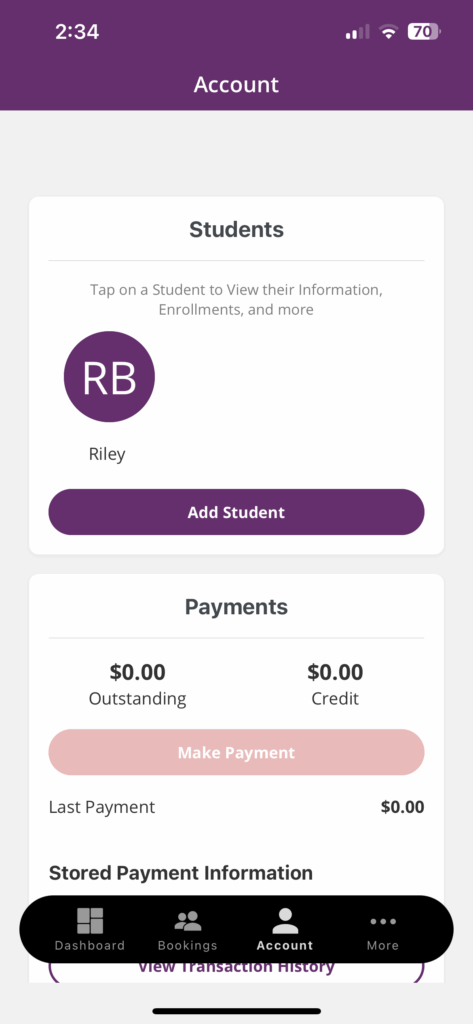
Tap Account at the bottom of the screen
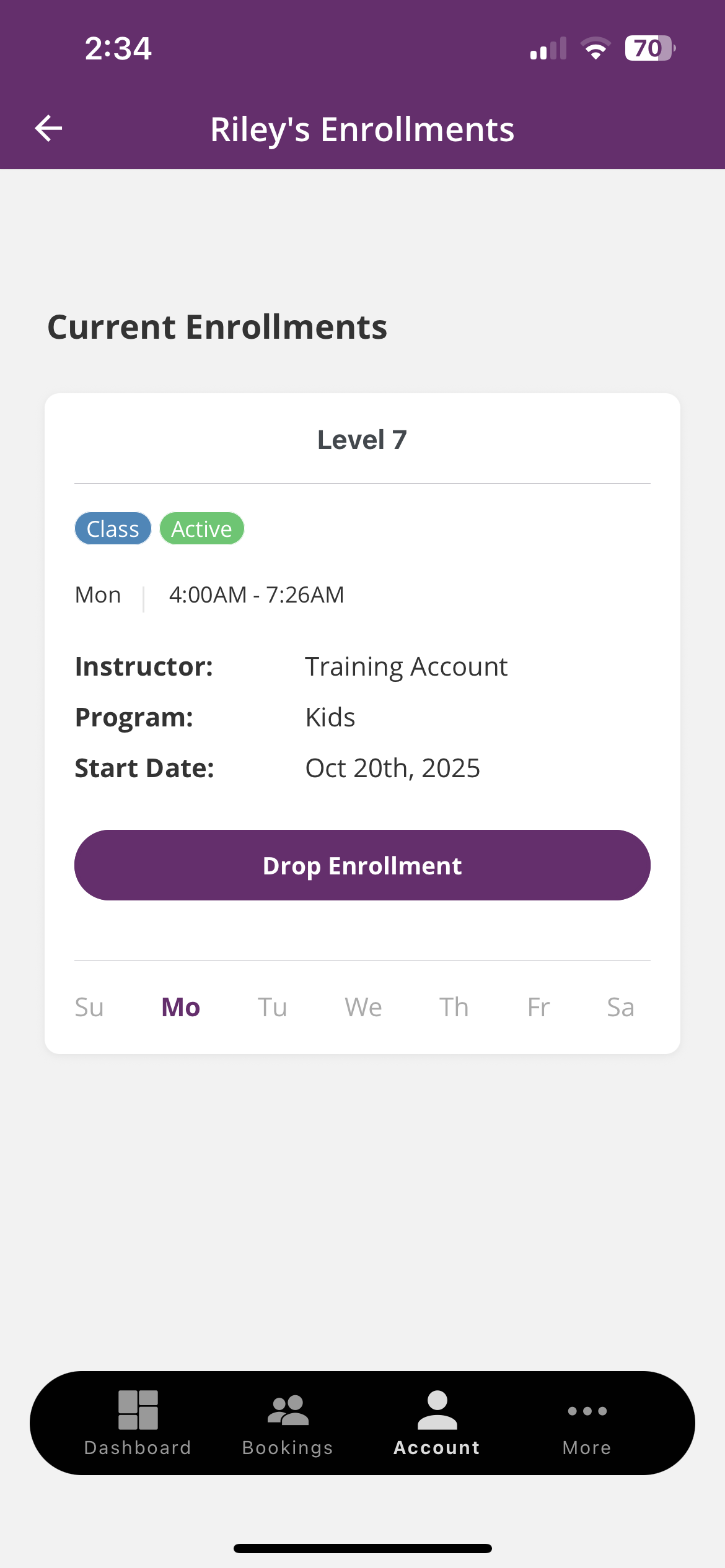
Tap your child’s name to view their Enrollments, including class day, time, and instructor
Tap any enrollment for more details
Tip: If you don’t see your swimmer listed, make sure you’re logged in with the same email tied to your Emler Swim School account
Mark Your Swimmer Absent
Tap Account at the bottom of the screen
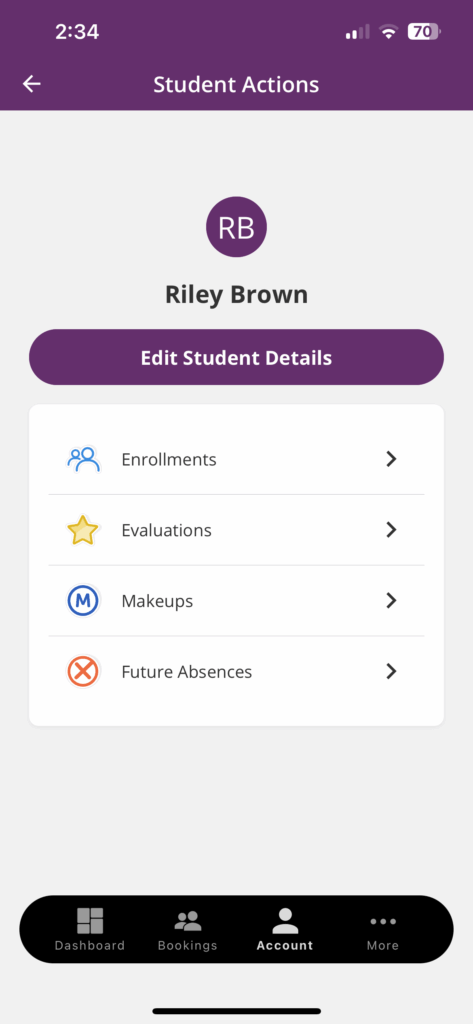
Tap your child’s name
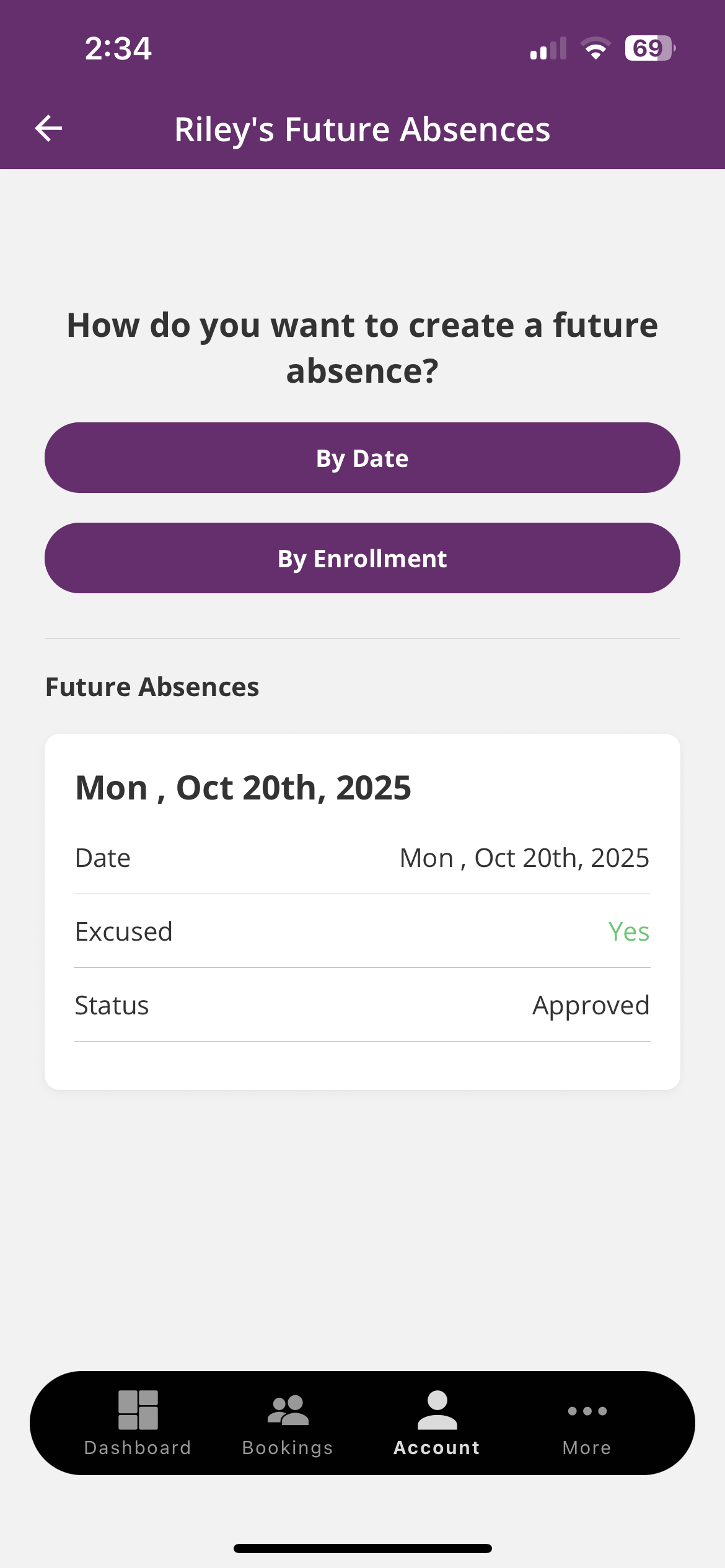
Tap Future Absences
Choose how you’d like to create the absence:
By Date – select the date(s) your swimmer will miss
By Enrollment – choose from their current class schedule
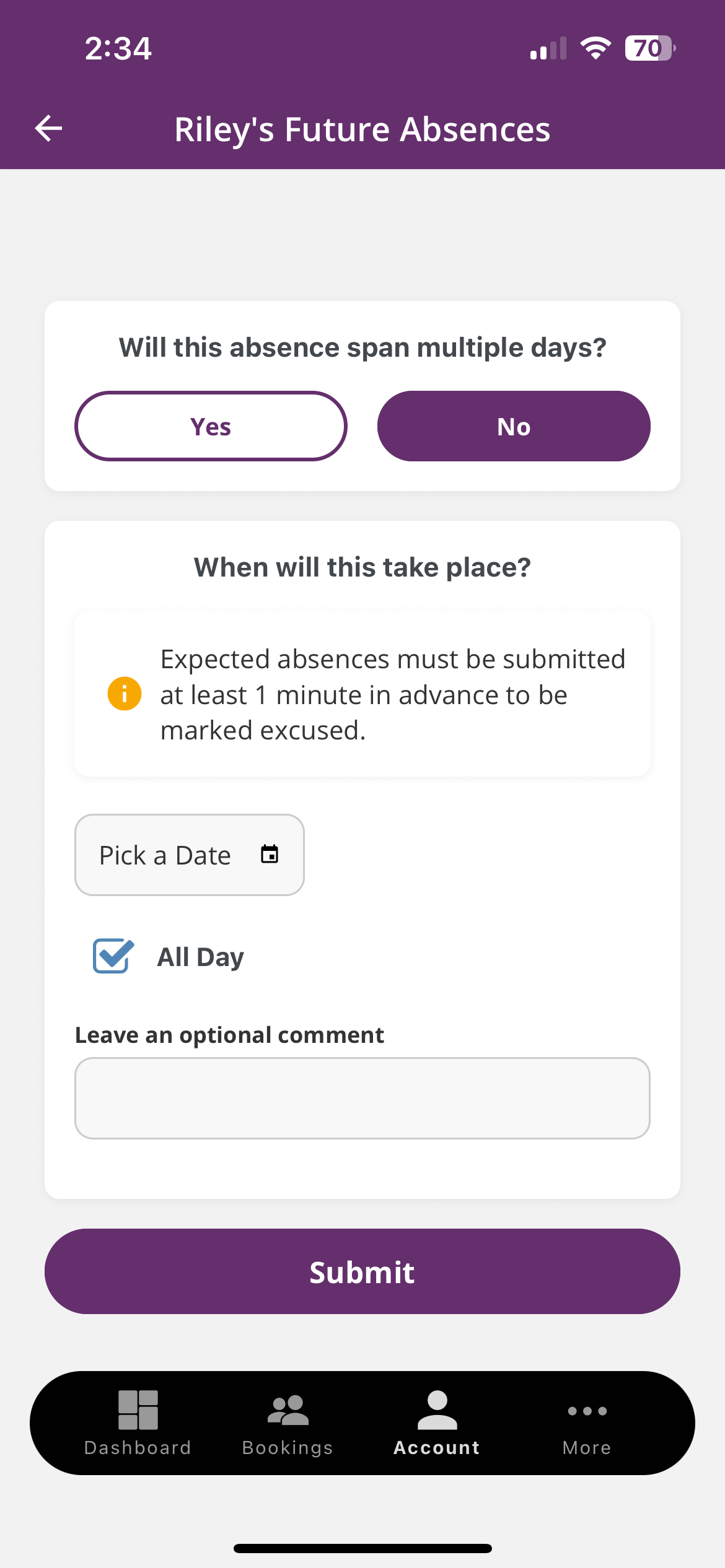
If the absence spans multiple days, select Yes or No depending on the number of days
Pick your date(s) and, if you’d like, add a short note or comment
Tap Submit to finalize
Note: Absences must be submitted at least 24 hours in advance to qualify. Once submitted and your excused absence is in the books, your iCP makeup token will become available for use following the time of that scheduled lesson.
Schedule a Makeup Class
Tap “Account” at the bottom of the screen
Tap your child’s name
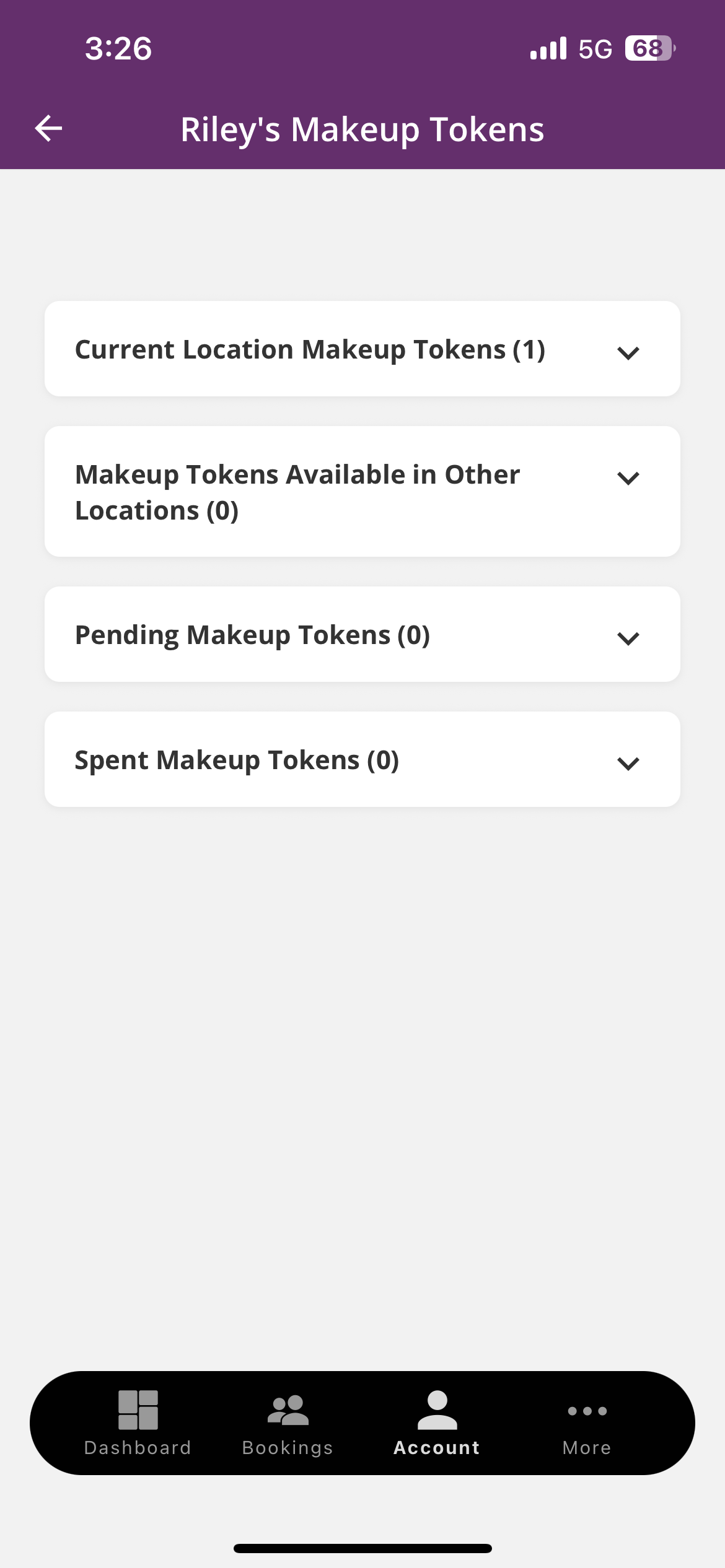
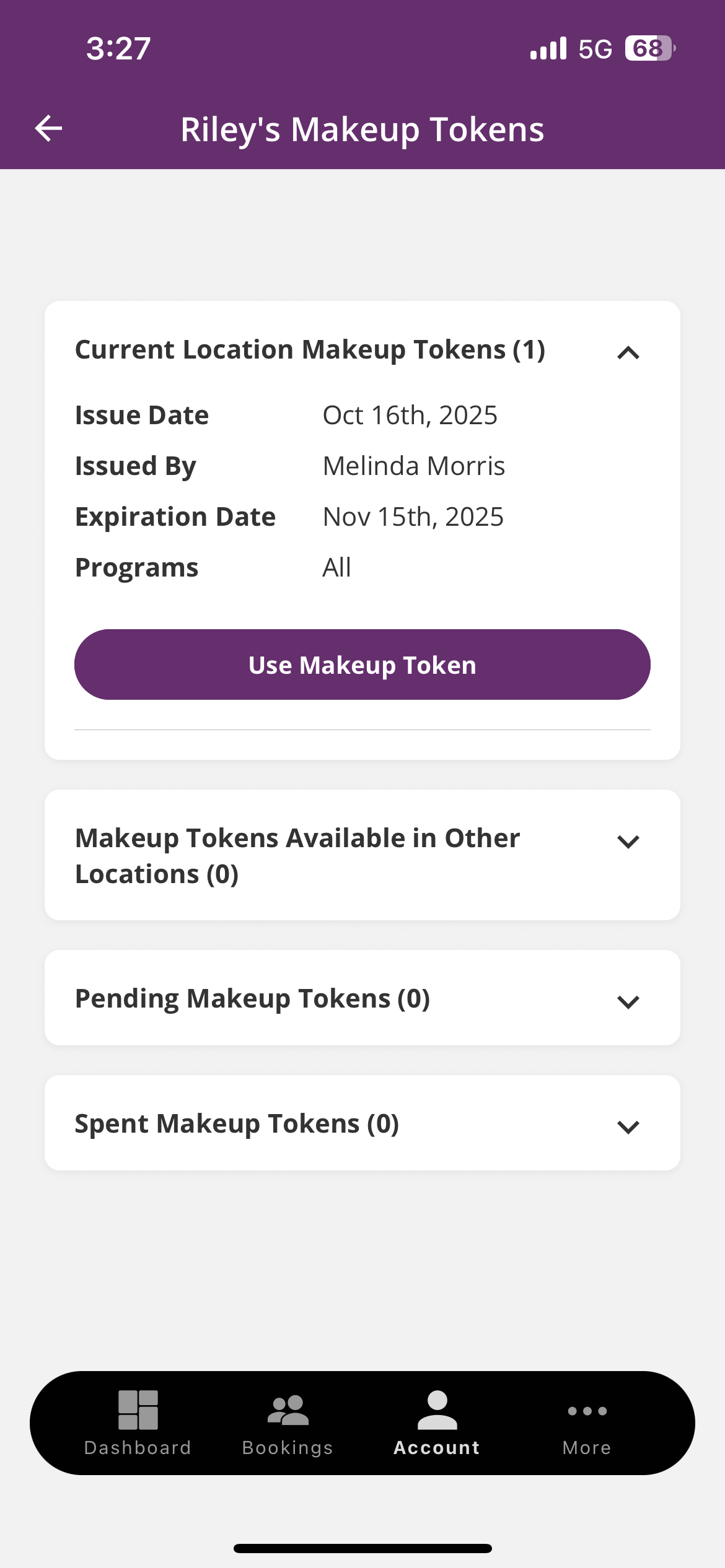
Tap “Makeup Tokens”
You’ll see your available makeup lessons listed under “Current Location Makeup Tokens” (or in Other Locations if applicable)
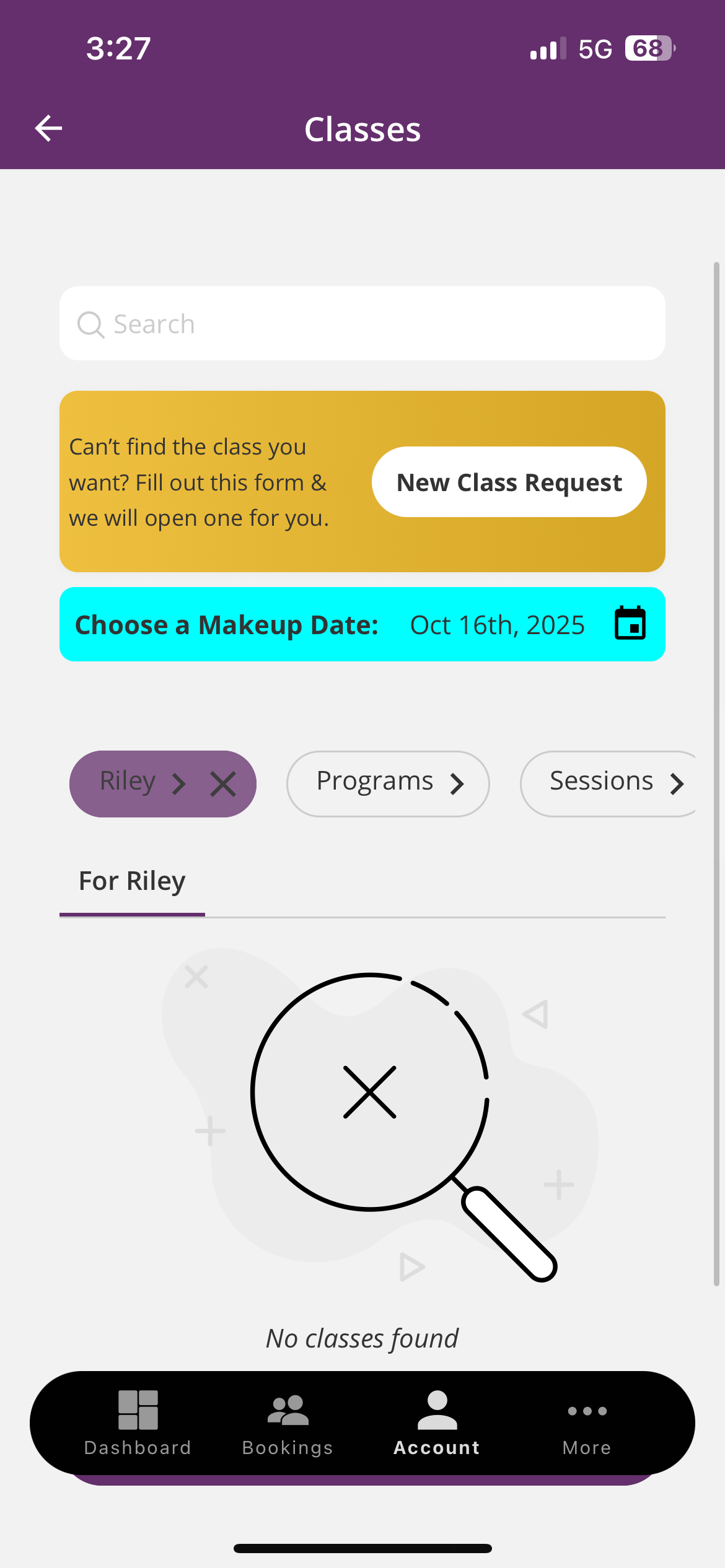
Tap “Use Token” next to an active token
Browse available classes and select your preferred day and time
Makeup classes can be scheduled up to 6 days in advance
Tap “Submit” to confirm your makeup lesson
Tip: Makeup lessons are issued after an approved absence and expire 45 days from the issue date. Be sure to schedule yours soon. Makeup lessons are forfeited if you drop your class.
Emler Swim School Customer Portal – Manage Your Swim Lessons
Emler Swim School’s customer portal makes it easy for parents to stay connected to their child’s swimming journey. Log in anytime to manage swim lesson schedules, update account information, and track your child’s progress through our proven SwimSure™ curriculum.
Our secure, user-friendly platform gives families convenient access to everything they need, from class details to important updates, all in one place.
Frequently Asked Questions
Enrollment & Scheduling
If you already have an account, your username is your email address. You can reset your password directly on the login page, or request help from our front desk team. New families will create their account during the registration process.
Our Parent Portal (also available as the iClassPro mobile app) is your go-to tool for managing your family’s swim journey. Through the Parent Portal you can:
Update your contact and billing information
Enroll in lessons or join a waitlist
View your child’s class schedule
Track skill progress and advancement
Review tuition and payment history
Schedule make-ups
Mark your child absent
Available classes are always listed online in the Parent Portal. You can view class times, filter by level, and join a waitlist if your preferred class is full.
Enrollment is ongoing — you can sign up at any time! If you start after the month has already begun, tuition will be prorated so you only pay for the remaining lessons.
You can register online through our website at any time. If you prefer, you can also call us at 855-232-2006 (Option 1) or register in person at any of our locations. Our team will be happy to walk you through the process and answer any questions.
After class, your child’s instructor or manager will give you a quick progress report and share enrollment options if you’d like to continue. Stop by the front desk before you leave so your child can get a hand stamp for a job well done!
We’ll place your child in the level that best matches their age and swim experience. For example, if your child would normally be in Level 6, we’ll schedule their free trial in a Level 6 class so you can see what regular lessons would look like.
Please call us at 855-232-2006, and our customer service team will be happy to schedule your child’s trial class.
Thirty minutes is the perfect length to keep kids engaged, build endurance, and learn skills without fatigue. Weekly lessons create structure and measurable progress.
Consistency drives faster progress, prevents regression, and allows swimmers to join at any time without waiting for sessions to start.
You select a weekly class time and keep that spot until you move up or change schedules. Many schools have separate school-year and summer schedules for flexibility.
Most of our schools offer continuous, year-round enrollment. You can start anytime and keep your spot until you take a break or advance to the next level.
Yes! We offer free trial classes for new families. It’s a great way to experience our program, meet our instructors, and see the difference for yourself before enrolling.